Playwright Mobile Testing: How to Test on Real Devices vs Emulators (2026 Guide)
Struggling with mobile test coverage? This guide walks you through mobile testing, device emulation, cloud platform integration, Android setup, touch events, and CI pipelines with working code examples against a real e-commerce site.




Mobile devices now generate over 62% of all web traffic worldwide. According to Global Growth Insights, the mobile testing market reached $11.93 billion in 2025.
If your test suite only validates desktop browsers, you are ignoring the majority of your users.
The problem teams facing: the full regression passes on Chrome desktop, green across the board. Then a customer files a bug because the checkout button overlaps on a Galaxy S24, or a carousel swipe does nothing on Safari iOS 17.
Emulators flag some of these problems. Real devices reveal the rest. Knowing when to reach for each approach separates teams that ship with confidence from teams that ship and pray.
We have run Playwright mobile testing across dozens of device configurations while building the TestDino Demo Store. Over six months, we caught 23 mobile-only layout regressions that desktop tests missed entirely.
Nine of those were Safari-specific rendering bugs that only surfaced on real iPhone hardware. This guide distills everything we learned.
Every code example in this guide runs against a live e-commerce store at storedemo.cms.testdino.com. You can clone the test files, execute them, and see results yourself. No placeholder code.
Playwright mobile testing uses Microsoft's Playwright framework to validate web apps on mobile viewports. It supports built-in device emulation and remote connections to real devices through cloud providers.
What is Playwright mobile testing and how does it work?
Playwright is an open-source browser automation framework created by Microsoft. It drives Chromium, Firefox, and WebKit through a unified API using the Chrome DevTools Protocol.
Unlike Selenium, which relies on the WebDriver standard, Playwright communicates directly with browser internals. This gives it finer control over rendering, network interception, and event dispatch. The official Playwright emulation documentation covers the full API surface.
For mobile web testing specifically, Playwright supports two distinct operating modes.
Mode 1: Device emulation (local, free, fast)
Playwright maintains an internal JSON registry with descriptors for over 100 real-world devices. Each descriptor bundles five key parameters: viewport width/height, device pixel ratio, a device-specific user agent string, and boolean flags for isMobile and hasTouch.
When you assign a profile like Pixel 7 or iPhone 15 Pro, Playwright creates a browser context pre-configured with those exact parameters. The browser engine then renders every page as if running on that physical device.
Mode 2: Real device testing (cloud-hosted or local USB)
Playwright can also connect to actual physical phones and tablets. Cloud platforms like LambdaTest and BrowserStack expose real Android and iOS hardware through WebSocket or CDP connections.
For Android specifically, Playwright ships with an experimental _android API that connects to a USB-attached device through ADB. This enables real device testing without any cloud subscription.
Note: Playwright automates mobile web browsers and WebViews only. It does not interact with native mobile app UIs. If you need to test a native Android or iOS application, tools like Appium, Maestro, or Detox are purpose-built for that.
When you select a device profile, the following sequence executes under the hood:
- Playwright reads the device descriptor from its internal registry (a JSON file bundled with the @playwright/test package).
- A new isolated BrowserContext is instantiated with the matching viewport, userAgent, deviceScaleFactor, isMobile, and hasTouch properties.
- The browser engine applies these parameters before the first navigation, rendering the page exactly as the target device would.
- With hasTouch: true, every pointer event dispatches as a TouchEvent instead of a MouseEvent, accurately simulating finger taps.
- With isMobile: true, the browser respects the <meta name="viewport"> tag, enabling proper responsive behavior.
This entire process is local, instant, and costs nothing. No cloud accounts, no API keys, no device labs.
import { defineConfig, devices } from "@playwright/test";

export default defineConfig({
  projects: [
    {
      name: "Mobile Chrome",
      use: { ...devices["Pixel 5"] },
    },
    {
      name: "Mobile Safari",
      use: { ...devices["iPhone 13"] },
    },
  ],
});
This configuration creates two parallel test projects. Every test file in your suite automatically runs twice: once emulating a Pixel 5 on Chromium and once emulating an iPhone 13 on WebKit. Playwright manages the viewport sizing, user agent spoofing, and touch event routing without any test code changes.

Setting up Playwright device emulation (step-by-step)
This section walks through a complete setup from an empty directory to a running mobile test. Every test targets the TestDino Demo Store at storedemo.cms.testdino.com, a fully functional e-commerce application you can test against right now.
Step 1: Initialize the project and install Playwright
npm init -y

npm install -D @playwright/test

npx playwright install
The npx playwright install command downloads browser binaries for Chromium, Firefox, and WebKit. WebKit is essential because it powers Safari emulation on desktop.
This gives you the closest approximation of iPhone/iPad behavior without a real device. Refer to the official Playwright device list to see every built-in profile.
Step 2: Configure multiple mobile device profiles
Open playwright.config.ts and define separate projects for each target device. This approach lets you run the same test code across desktop and multiple mobile viewports simultaneously.
import { defineConfig, devices } from "@playwright/test";

export default defineConfig({
  testDir: "./tests",
  timeout: 30000,
  use: {
    baseURL: "https://storedemo.cms.testdino.com",
    trace: "on-first-retry",
  },
  projects: [
    {
      name: "Desktop Chrome",
      use: { ...devices["Desktop Chrome"] },
    },
    {
      name: "Pixel 5",
      use: { ...devices["Pixel 5"] },
    },
    {
      name: "iPhone 13",
      use: { ...devices["iPhone 13"] },
    },
    {
      name: "Galaxy S9+",
      use: { ...devices["Galaxy S9+"] },
    },
  ],
});
Each project inherits the shared baseURL and trace settings while applying its own device descriptor. When you run npx playwright test, all four projects execute in parallel by default, giving you cross-device coverage in a single command.
Step 3: Write a mobile navigation test
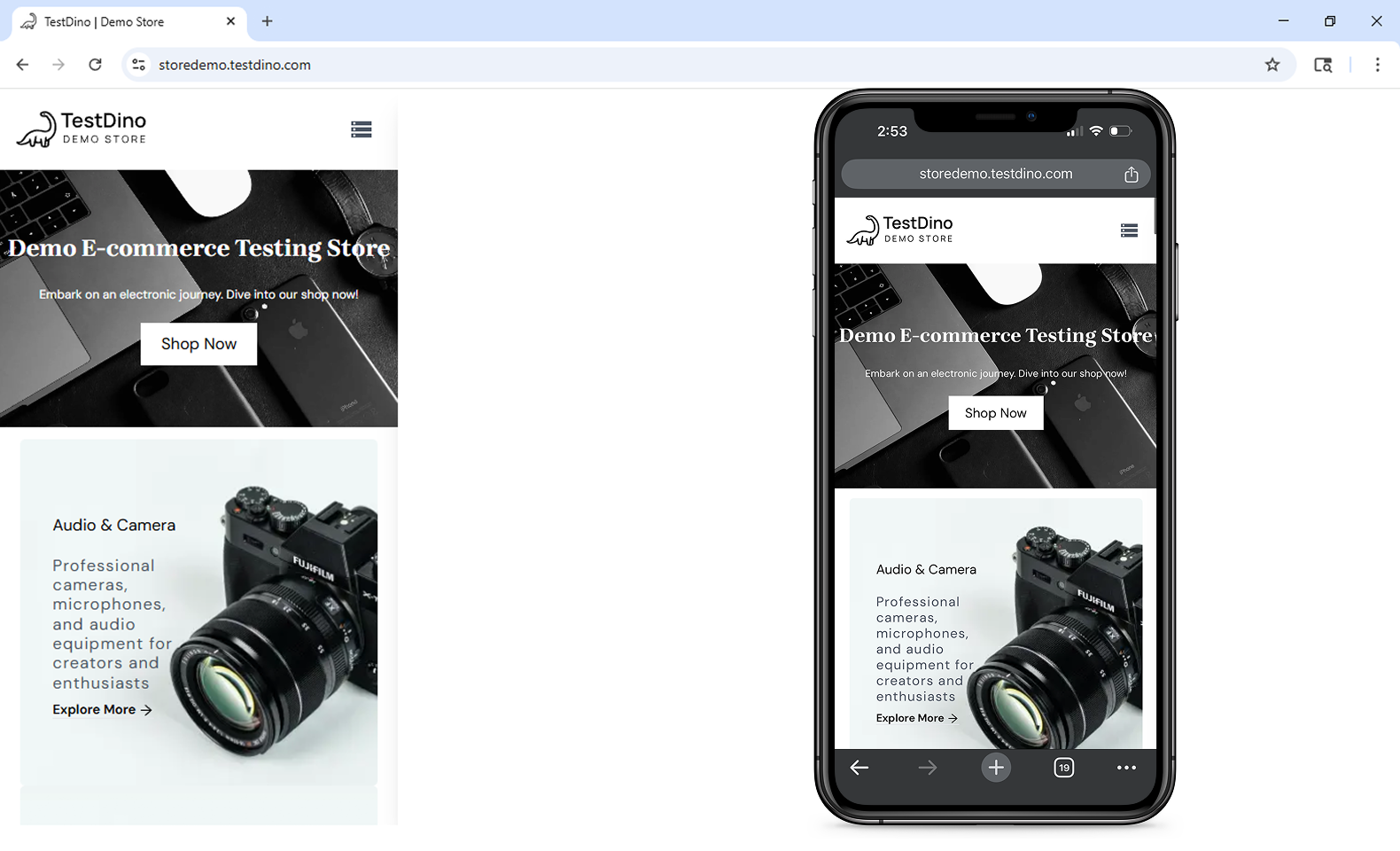
On desktop, the TestDino Demo Store renders a full horizontal navigation bar. On mobile viewports below 768px, this collapses into a hamburger menu icon. This behavioral difference is exactly the kind of responsive logic that mobile testing catches.
import { test, expect, devices } from '@playwright/test';

test.use({
  ...devices['Pixel 5'],
});

test('test', async ({ page }) => {
  await page.goto('/');
  await page.getByTestId('header-menu-icon').click();
  await page.getByTestId('header-menu-all-products').nth(1).click();
});
Step 4: Write an add-to-cart test using touch interactions
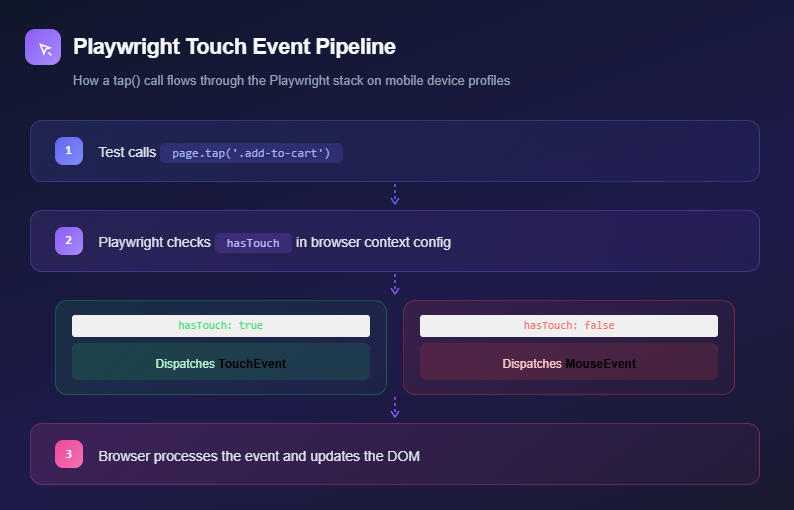
Mobile users tap, they do not click. When a device profile has hasTouch: true, Playwright's .tap() method dispatches a genuine TouchEvent to the browser, exercising the same code path a real finger press would trigger.
import { test, expect } from "@playwright/test";

test("add product to cart on mobile viewport", async ({ page }) => {
  await page.goto("/");

  // Tap "Shop Now" on the hero section
  await page.getByRole("link", { name: "Shop Now" }).tap();

  // Click on the first product card to view details
  await page.locator(".product-card").first().click();

  // Wait for product detail page to load
  await expect(page.getByRole("button", { name: "ADD TO CART" })).toBeVisible();

  // Tap the Add to Cart button
  await page.getByRole("button", { name: "ADD TO CART" }).tap();

  // Verify the cart counter updates (badge shows item count)
  const cartBadge = page.locator('[class*="badge"]').first();
  await expect(cartBadge).toBeVisible();
});
Step 5: Execute the mobile test suite
npx playwright test --project="Pixel 5"
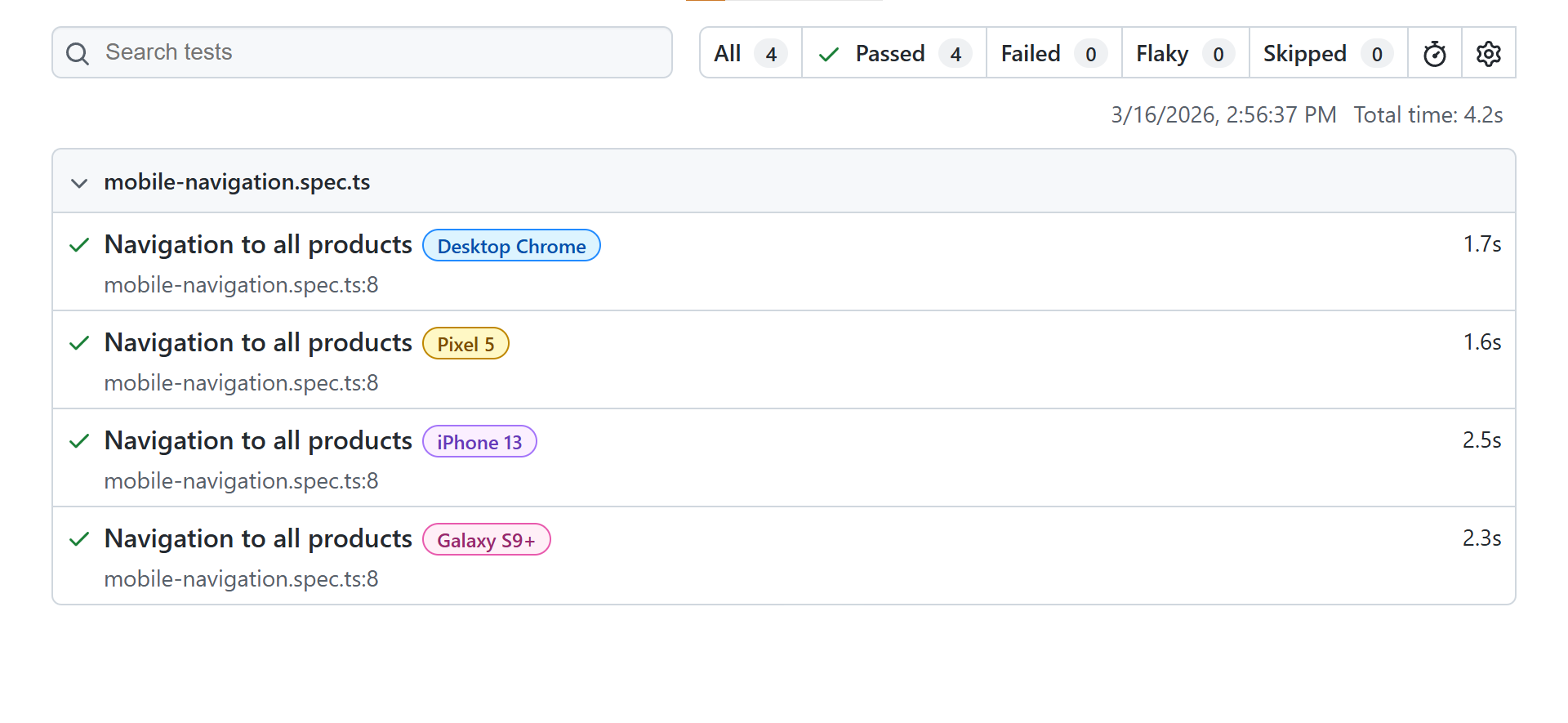

Tip: Run npx playwright test --project="iPhone 13" --headed to visually watch the test execute in a resized browser window. This is the fastest way to debug layout issues that only surface at specific viewport widths.
Step 6: Define custom device profiles for unlisted devices
Playwright's built-in registry covers the most popular devices. But your analytics might show significant traffic from a tablet or foldable that is not included.
Define a custom profile by specifying each parameter manually.
{
  name: 'Custom Android Tablet',
  use: {
    viewport: { width: 800, height: 1280 },
    userAgent: 'Mozilla/5.0 (Linux; Android 13; SM-X200) AppleWebKit/537.36 (KHTML, like Gecko) Chrome/120.0.0.0 Safari/537.36',
    deviceScaleFactor: 2,
    isMobile: true,
    hasTouch: true,
  },
}
Understanding how the Playwright architecture separates the client API from the browser server process clarifies why these device parameters work: they are injected into the browser process before any page renders, so every navigation inherits them automatically. For a complete walkthrough of setting up your first Playwright project, see the Playwright automation tutorial.
Emulation vs real device testing: what actually changes?
Every QA team eventually faces this question: when is emulation enough, and when do you need real hardware? The answer is not one or the other. It is both, applied strategically.
| Factor | Emulation | Real device testing |
|---|---|---|
| Speed | Instant startup, zero network latency. Tests run at native machine speed. | Slower. Every action travels over a network to a remote device. |
| Cost | Completely free. Ships with Playwright, no subscriptions needed. | Requires a paid cloud platform subscription or physical device lab. |
| Rendering accuracy | Desktop browser engine approximates mobile rendering. WebKit on macOS/Linux differs from Safari on iOS. | Pixel-perfect accuracy. The actual device browser renders with its real engine. |
| Touch and gesture fidelity | Simulated through software. Single-touch only, no hardware pressure sensitivity. | Real capacitive touchscreen with multi-touch, pressure sensitivity, and haptic feedback. |
| Performance benchmarks | Misleading. Uses host machine CPU, GPU, and RAM instead of device hardware. | Accurate. Tests run under real CPU, memory, and thermal constraints. |
| Hardware feature access | No access to GPS, camera, accelerometer, Face ID, or NFC. | Full access to all device sensors and hardware capabilities. |
| CI/CD complexity | Zero external dependencies. Works in any CI environment with a browser. | Requires API credentials, network access to cloud platform, and session management. |
| Device variety | 100+ built-in profiles plus unlimited custom configurations. | Thousands of real devices across manufacturers, OS versions, and screen sizes. |
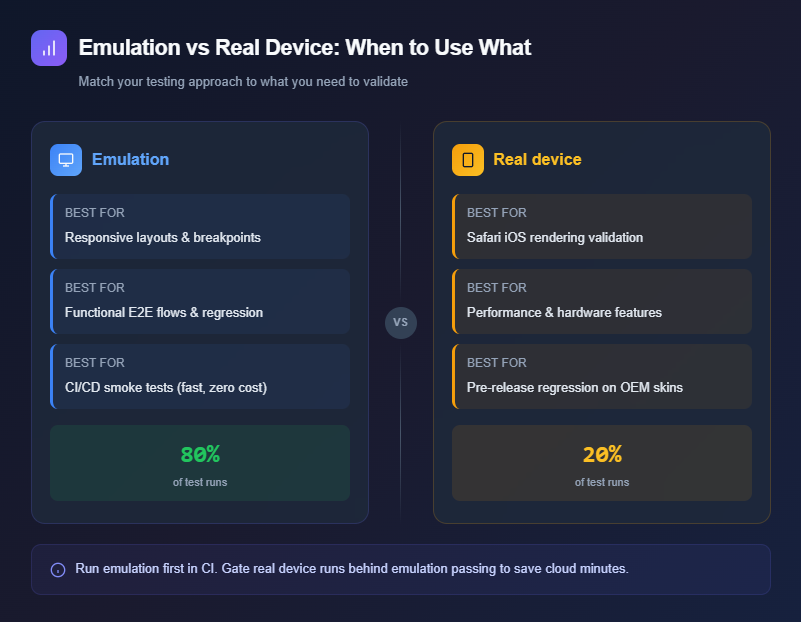
Tip: Use emulation for 80% of mobile test runs (layouts, E2E flows, regression). Reserve real devices for the remaining 20% (Safari rendering, performance profiling). Following Playwright best practices makes this split easier.
The most dangerous gap between emulation and real devices is iOS Safari. Desktop WebKit and mobile Safari on an actual iPhone are not the same engine.
Mobile Safari has its own scrolling physics, fixed-position element quirks, and unique CSS interpretations. Teams that rely exclusively on emulation consistently discover Safari-only bugs after production deployment.
Here is a concrete example. Your emulated test on storedemo.cms.testdino.com shows the product grid rendering in 2 columns on an iPhone 13. The test passes.
But on a real iPhone 13, the grid renders in 1 column because mobile Safari handles the CSS gap property differently with flex-wrap. This class of bug is invisible to emulation.
import { test, expect } from "@playwright/test";

test("product grid shows correct column layout on mobile", async ({ page }) => {
  await page.goto("/");

  // Scroll to the product section
  const productSection = page.locator(".product-card").first();
  await productSection.scrollIntoViewIfNeeded();

  // Get the viewport width
  const viewport = page.viewportSize();
  if (viewport && viewport.width < 768) {
    // On mobile, products should stack or show 2 columns max
    const firstCard = await page.locator(".product-card").first().boundingBox();
    const secondCard = await page.locator(".product-card").nth(1).boundingBox();

    if (firstCard && secondCard) {
      // If cards are stacked, second card's Y should be greater than first card's Y + height
      // If side by side, they share approximately the same Y
      const isStacked = secondCard.y > firstCard.y + firstCard.height / 2;
      const isTwoColumn = Math.abs(secondCard.y - firstCard.y) < 10;
      expect(isStacked || isTwoColumn).toBeTruthy();
    }
  }
});
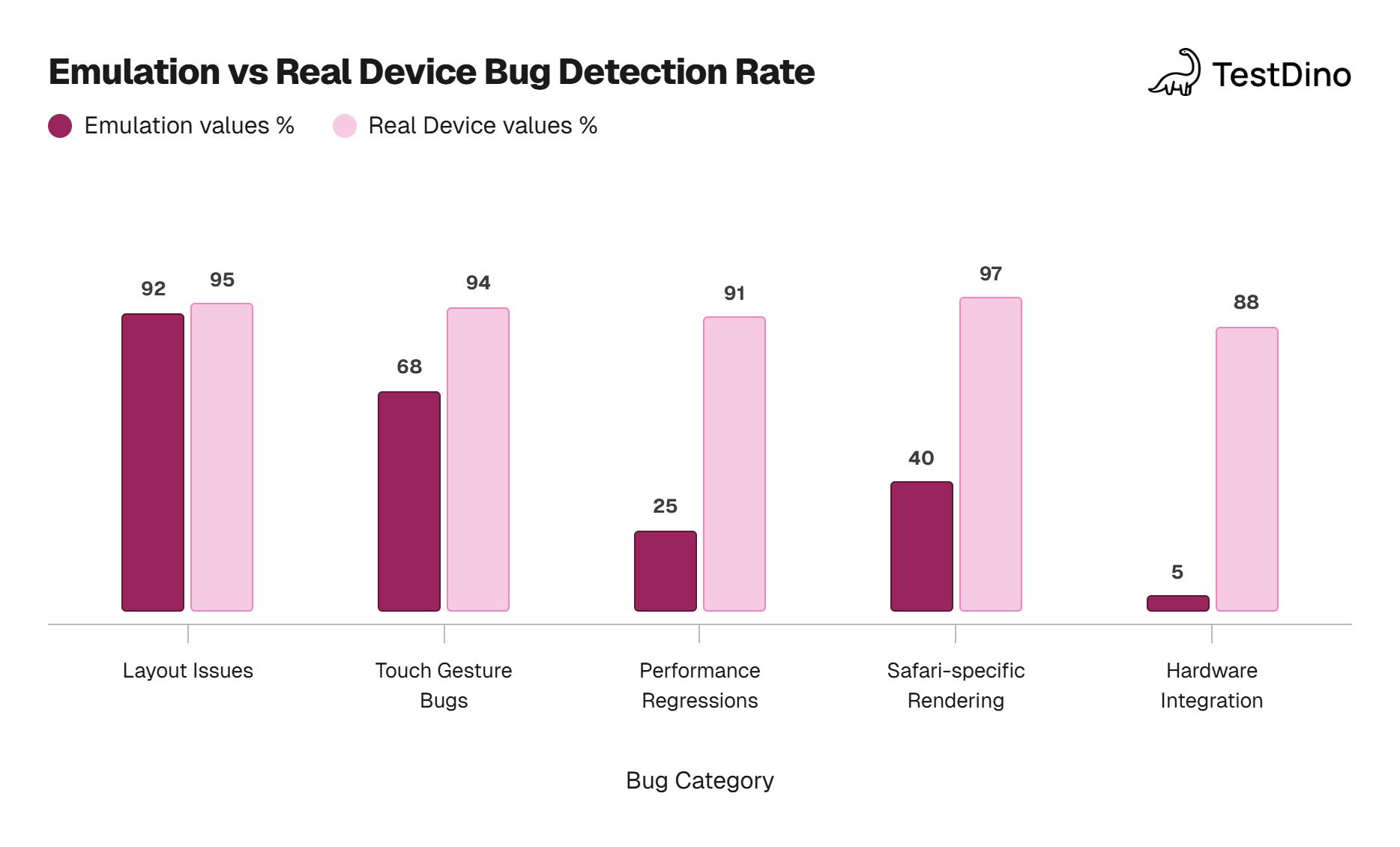
Source: Perfecto's 2024 "Mobile Testing Coverage Report" comparing emulation vs physical device defect discovery across 12,000 test suites
How do you run Playwright tests on real mobile devices?
Playwright does not include built-in connectivity to real phones and tablets out of the box. You connect Playwright to a remote browser session hosted by a cloud provider, or use experimental local Android support.
Three approaches are available, each suited to different team sizes and budgets.
Approach 1: Cloud SDK integration (LambdaTest example)
Cloud platforms expose real devices through WebSocket or CDP endpoints. Your test connects to the remote browser exactly as it would locally.
Here is a working setup using LambdaTest.
Step 1: Install the provider SDK.
npm install -D lambdatest-node-sdk
Step 2: Configure real device capabilities and run a test.
import { test, expect } from "@playwright/test";

const capabilities = {
  browserName: "Chrome",
  browserVersion: "latest",
  "LT:Options": {
    platform: "Android",
    deviceName: "Pixel 7",
    platformVersion: "13.0",
    user: process.env.LT_USERNAME,
    accessKey: process.env.LT_ACCESS_KEY,
    network: true,
    console: true,
  },
};

test("verify product page loads on real Pixel 7", async ({ browser }) => {
  const context = await browser.newContext(capabilities);
  const page = await context.newPage();

  await page.goto("https://storedemo.cms.testdino.com");
  await expect(page.getByText("Demo E-commerce Testing Store")).toBeVisible();

  // Navigate to products and verify grid renders
  await page.getByText("All Products").click();
  await expect(page.getByPlaceholder("Search products...")).toBeVisible();

  await context.close();
});
Approach 2: BrowserStack SDK integration
BrowserStack uses a YAML-based configuration file for specifying device targets. This approach cleanly separates device selection from test code.
userName: YOUR_USERNAME
accessKey: YOUR_ACCESS_KEY
platforms:
  - deviceName: Samsung Galaxy S23
    osVersion: 13.0
    browserName: chrome
    browserVersion: latest
  - deviceName: iPhone 15
    osVersion: 17
    browserName: safari
    browserVersion: latest
parallelsPerPlatform: 2
npm install -D browserstack-node-sdk
npx browserstack-node-sdk playwright test
Approach 3: Experimental local Android support (USB connection)
Playwright ships with an experimental _android API (available since v1.20) that connects directly to a physical Android device via ADB. No cloud subscription required.
Prerequisites: Android device connected via USB, ADB daemon running, USB debugging enabled, and Chrome 87+ on the device.
import { _android as android } from "playwright";

(async () => {
  const [device] = await android.devices();
  console.log(`Connected to: ${device.model()}`);

  await device.shell("am force-stop com.android.chrome");
  const context = await device.launchBrowser();
  const page = await context.newPage();

  await page.goto("https://storedemo.cms.testdino.com");

  // Verify the store loads on a real Android device
  const heading = page.getByText("Demo E-commerce Testing Store");
  console.log(`Heading visible: ${await heading.isVisible()}`);

  await context.close();
  await device.close();
})();
Note: The _android API is experimental. Screenshots only work when the device screen is active. For iOS, Apple blocks third-party browser automation, so cloud providers are your only option. See the official Android API docs.
Consistent Playwright locators matter across both emulation and real device contexts. Role-based selectors like getByRole and getByText work identically whether the browser is local or remote.
Teams adopting Playwright automation testing as their standard practice benefit from this portability across emulation and cloud setups.
Cloud platform comparison: choosing a real device provider
Selecting a cloud device provider comes down to three factors: device count, Playwright integration depth, and budget.
| Feature | LambdaTest | BrowserStack | PCloudy |
|---|---|---|---|
| Real device count | 3,000+ (Android and iOS) | 3,500+ (Android and iOS) | 500+ (Android and iOS) |
| Playwright support | WebSocket-based connection | Native SDK integration | CDP-based connection |
| iOS Safari on real iPhone | Yes (supported) | Yes (full support) | Limited |
| Parallel execution | Yes (plan-based limits) | Yes (plan-based limits) | Yes (limited) |
| Video recording | Automatic | Automatic | Manual trigger |
| CI/CD integration | GitHub Actions, GitLab CI, Jenkins, Azure DevOps | GitHub Actions, GitLab CI, Jenkins, CircleCI | Jenkins, CircleCI |
| Pricing | Starts at $15/month | Starts at $29/month | Starts at $100/month |
| Free trial | 100 minutes | 100 minutes | Free trial available |
All three platforms work with Playwright. LambdaTest delivers the best value for budget-conscious teams. BrowserStack owns the largest iOS device catalog.
PCloudy fills a niche for organizations already using it for Appium-based native testing.
When configuring Playwright parallel execution against cloud devices, match your worker count to your subscription tier. Exceeding your session limit causes tests to queue unpredictably.
Handling touch events and mobile gestures in Playwright
The moment a device profile sets hasTouch: true, Playwright changes how it dispatches pointer interactions. A page.click() on desktop fires a MouseEvent; on mobile it fires a TouchEvent instead.
This matters because many mobile web apps use touch event listeners (touchstart, touchend, touchmove) and some UI libraries only respond to touch events on mobile viewports.
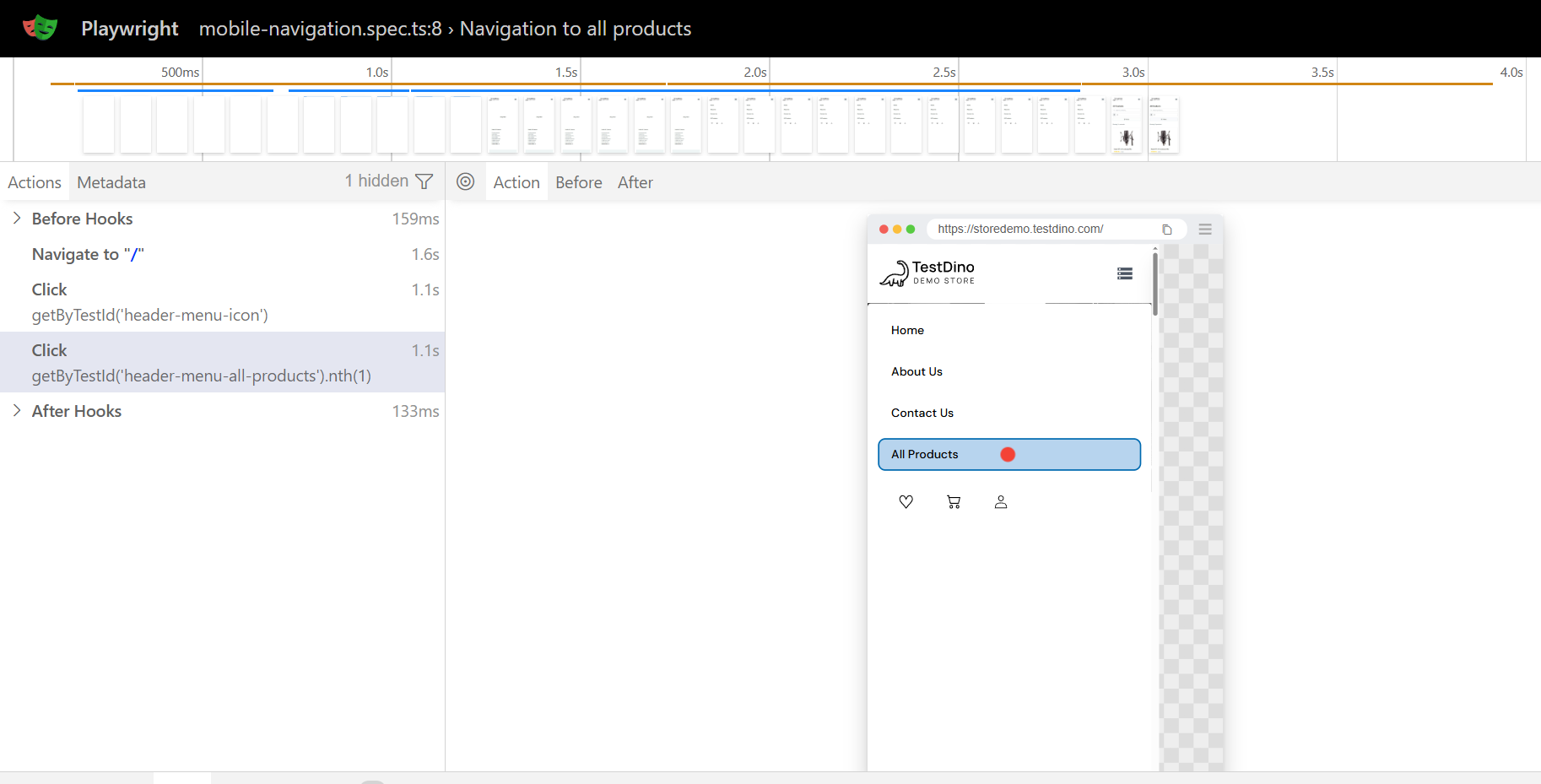
Here is a working touch navigation test against the demo store:
import { test, expect, devices } from '@playwright/test';

test.use({
  ...devices['Pixel 5'],
});

test('test', async ({ page }) => {
  await page.goto('/');
  await page.getByTestId('header-menu-icon').click();
  await page.getByTestId('header-menu-all-products').nth(1).click();
});
Tip: Always set isMobile: true in your device config. Without it, the browser ignores the <meta name="viewport"> tag and renders at full desktop width despite mobile-sized viewport dimensions.
A debugging trap that catches even experienced teams: page.tap() throws "element not visible" because a sticky header covers the target after scrolling.
The fix: scroll the element into the visible area first.
await page.locator(".target-element").scrollIntoViewIfNeeded();
await page.locator(".target-element").tap();
Running mobile tests in CI/CD pipelines
Mobile emulation tests execute identically in CI environments as they do locally. Because emulation runs inside standard browser binaries, there are zero external dependencies.
Your CI runner downloads the same Chromium, Firefox, and WebKit browsers that Playwright uses on your machine.
GitHub Actions workflow:
name: Mobile Tests

on: [push, pull_request]

jobs:
  mobile-emulation:
    runs-on: ubuntu-latest
    steps:
      - uses: actions/checkout@v4
      - uses: actions/setup-node@v4
        with:
          node-version: 20
      - run: npm ci
      - run: npx playwright install --with-deps
      - run: npx playwright test --project="Pixel 5" --project="iPhone 13"
      - uses: actions/upload-artifact@v4
        if: always()
        with:
          name: mobile-test-report
          path: playwright-report/

  real-device-tests:
    runs-on: ubuntu-latest
    needs: mobile-emulation
    steps:
      - uses: actions/checkout@v4
      - uses: actions/setup-node@v4
        with:
          node-version: 20
      - run: npm ci
      - run: npm run test:cloud-devices
        env:
          CLOUD_USERNAME: ${{ secrets.CLOUD_USERNAME }}
          CLOUD_ACCESS_KEY: ${{ secrets.CLOUD_ACCESS_KEY }}
This pipeline follows a two-stage strategy that optimizes both speed and cost:
- Stage 1 (emulation): Runs mobile tests on Pixel 5 and iPhone 13 emulation profiles. Fast, free, and catches the majority of responsive layout and functional regressions.
- Stage 2 (real devices): Only triggers after emulation passes (the needs: mobile-emulation directive enforces this). Runs the same test code against real physical devices via your cloud provider. This gate prevents wasting expensive cloud minutes on test runs that are already failing.
Note: Store all cloud provider credentials (usernames, API keys, access tokens) as encrypted secrets in your CI platform. Never hardcode credentials in configuration files or commit them to version control.
GitLab CI configuration:
mobile-tests:
  image: mcr.microsoft.com/playwright:v1.49.0-noble
  stage: test
  script:
    - npm ci
    - npx playwright test --project="Pixel 5" --project="iPhone 13"
  artifacts:
    when: always
    paths:
      - playwright-report/
    expire_in: 7 days
When investigating flaky tests in mobile CI runs, focus on two failure categories: viewport-dependent selectors and mobile-specific animation timing issues.
Adopting a structured Playwright testing workflow helps standardize how your team handles these device-specific failures.
Teams running TestDino alongside their Playwright CI pipelines can track pass/fail trends across every device configuration from a single observability dashboard.
When a test fails only on iPhone 13 but passes everywhere else, that device-specific signal is immediately visible.
Playwright vs Appium vs Maestro vs Detox: picking the right mobile testing tool
Four frameworks dominate mobile testing in 2026. Each targets a different slice of the problem.
Understanding where each excels prevents you from forcing a tool into a use case it was never designed for.
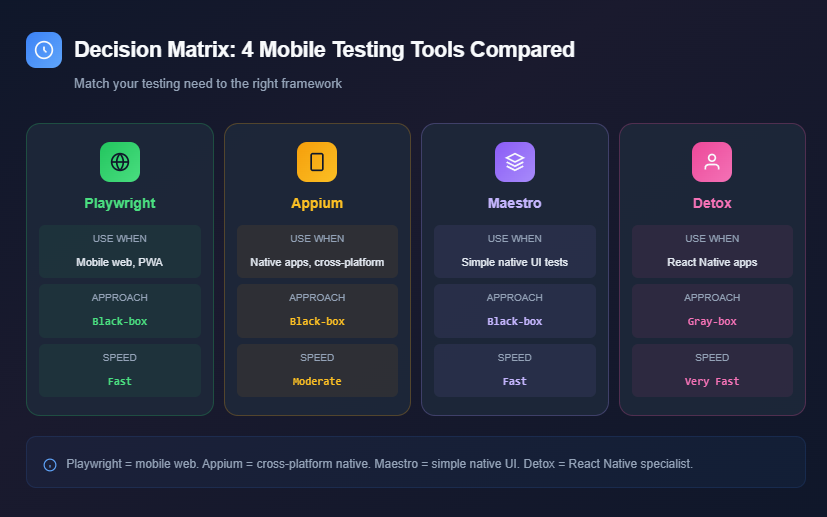
Detox is a gray-box E2E testing framework built by Wix for React Native applications. Unlike black-box tools, Detox runs inside the app process and auto-synchronizes with animations, network requests, and async bridge operations.
This eliminates the timing-based flakiness that plagues other mobile testing frameworks.
| Capability | Playwright | Appium | Maestro | Detox |
|---|---|---|---|---|
| Primary use case | Mobile web, PWA, hybrid WebView | Native, hybrid, and mobile web apps | Native mobile UI (iOS and Android) | React Native E2E testing |
| Testing approach | Black-box (browser automation) | Black-box (WebDriver protocol) | Black-box (UI-level) | Gray-box (in-process, app-aware) |
| Language support | JS/TS, Python, Java, C# | Java, Python, Ruby, C#, JS | YAML (declarative) | JS/TS only (Jest integration) |
| Setup complexity | Low (npm install) | High (server, drivers, SDKs) | Low (CLI install) | Medium (native build config required) |
| Execution speed | Fast (direct browser protocol) | Moderate (WebDriver overhead) | Fast (interpreted, no compilation) | Very fast (in-process, same thread) |
| Flaky test handling | Auto-wait + retry on assertion | Explicit waits needed, flake-prone | Intelligent UI wait, auto-retry | Auto-sync with animations, network, and RN bridge |
| iOS real device | Via cloud platforms only | Yes (XCUITest driver) | Yes (native support) | Yes (simulators + real devices) |
| Android real device | Experimental (_android API) + cloud | Yes (UIAutomator2/Espresso) | Yes (native support) | Yes (emulators + real devices) |
| Cross-browser testing | Chromium, Firefox, WebKit | Limited to device browser | No (app-focused) | No (app-focused) |
| CI/CD friendliness | Excellent (Docker images, GitHub Actions) | Good (requires Appium server) | Good (Maestro Cloud available) | Excellent (built for CI, headless mode) |
| Learning curve | Moderate | Steep | Low (YAML-based) | Moderate (JS/TS + native config) |
| Community (GitHub stars) | 68k+ | 18k+ | 7k+ | 11k+ |
Choose Playwright when:
- Your application is a responsive web app, PWA, or hybrid app that uses WebViews for its mobile experience.
- You need cross-browser coverage across Chromium, Firefox, and WebKit on mobile viewport sizes.
- Your engineering team already uses Playwright for desktop testing and wants one framework for both.
- You prioritize fast CI/CD feedback with zero external dependencies for the emulation layer.
- Your test suite must cover desktop and mobile web flows without context-switching between different tools.
Choose Appium when:
- You are testing a native Android or iOS application with platform-specific UI components.
- Your tests need to interact with device hardware like GPS, camera, fingerprint sensors, or push notifications.
- Your team operates across multiple programming languages and wants the WebDriver protocol standard.
- You are testing hybrid applications that combine native UI elements with embedded WebViews.
- Your organization has existing Selenium infrastructure and wants a consistent cross-platform automation standard.
Choose Maestro when:
- You want rapid, code-free mobile UI test creation using YAML flow definitions.
- Your QA team includes non-developers who need to write and maintain test cases independently.
- You are testing Flutter, React Native, or SwiftUI apps where visual test recording accelerates coverage.
- You need to create quick smoke tests without configuring native build toolchains.
- You want managed cloud execution through Maestro Cloud for parallel test distribution.
Choose Detox when:
- Your application is built on React Native and you need E2E tests that are deeply aware of the app lifecycle.
- Flaky tests are a critical problem because your app relies heavily on animations, complex async state, or network-driven UI updates.
- Your development team writes JavaScript or TypeScript and wants seamless Jest integration.
- You need tests that automatically pause until the React Native bridge, running animations, and pending network requests all settle before performing the next action.
- CI pipeline reliability outweighs language flexibility. Detox's gray-box architecture consistently produces the most deterministic results among mobile testing frameworks.
A practical architecture many mature teams adopt: Playwright for mobile web testing, Detox for React Native E2E, and a cloud provider for real device validation.
This layered approach covers the complete mobile testing spectrum without overloading any single tool.
According to Appium market share data, Appium remains the most widely deployed mobile testing framework globally. Detox adoption has grown among React Native teams.
Playwright is increasingly the default for teams whose primary mobile surface is a web application.
The landscape of mobile testing tools within the Playwright AI ecosystem continues to evolve, with AI-powered test generation and self-healing locators reducing the maintenance overhead of cross-device test suites.
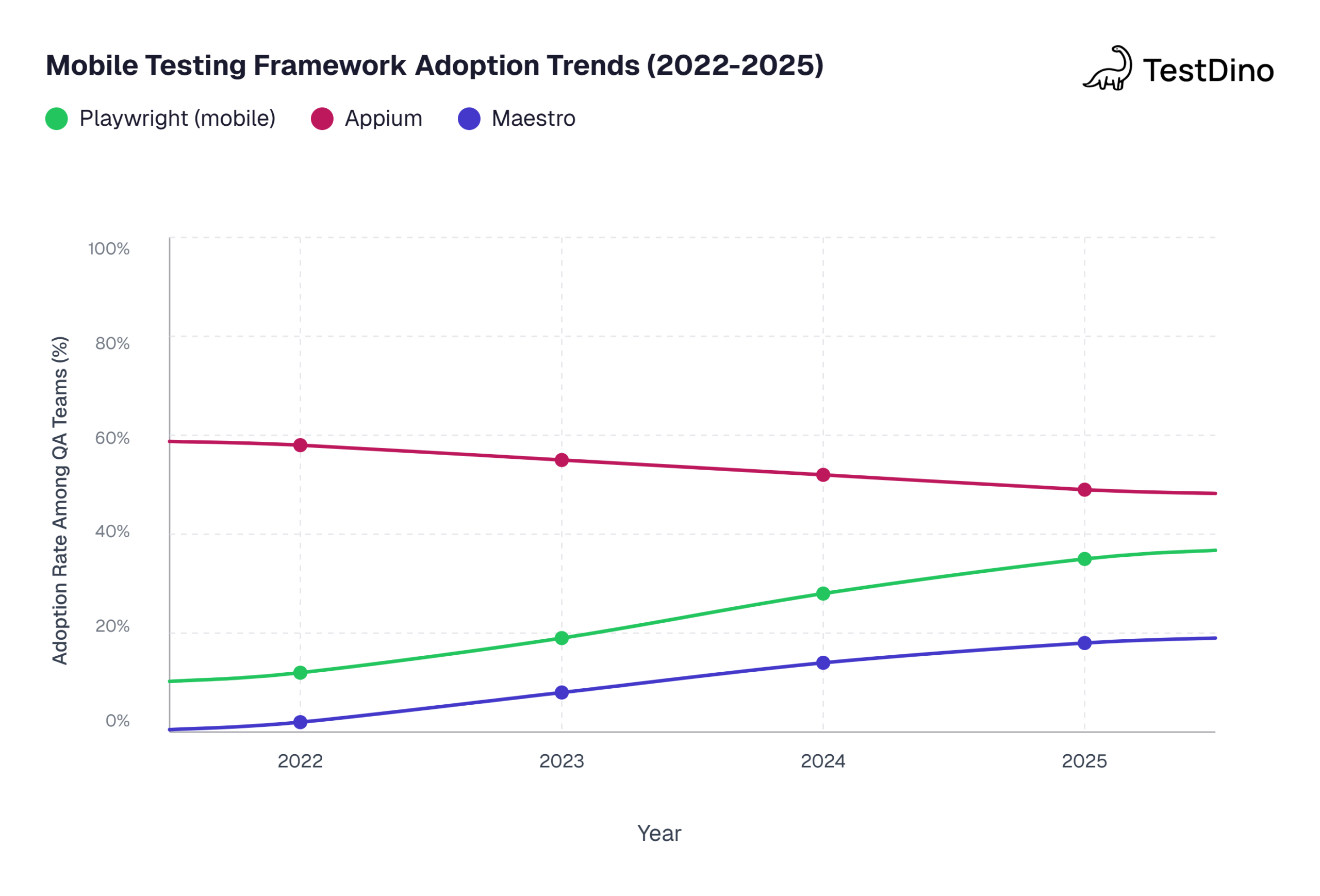
Source: Based on JetBrains "State of Developer Ecosystem" surveys 2022-2024 and Stack Overflow Developer Surveys 2022-2025 adoption trend data
Conclusion
Playwright mobile testing provides two complementary paths: device emulation for fast, zero-cost layout validation, and real device cloud connections for Safari accuracy and performance benchmarking.
The built-in devices registry handles emulation. Cloud SDKs handle real devices. The same test code runs across both without modification.
For responsive web apps and PWAs, Playwright delivers comprehensive mobile coverage without a separate toolchain. For native apps, pair it with Appium, Maestro, or Detox.
Start with emulation in CI to catch regressions on every commit. Layer in real device testing for your highest-traffic device and OS combinations.
Structure your suite using BDD-driven patterns so it scales as your device list grows. Connect TestDino to track pass rates and device-specific regressions from a single dashboard.
Your mobile users do not file bug reports. They leave. Test their experience before they encounter it.
FAQs
Table of content
Flaky tests killing your velocity?
TestDino auto-detects flakiness, categorizes root causes, tracks patterns over time.
Follow Us